NOTE: You may be prompted to update your password before you can set up Two-Factor Authentication.
1. After logging in, you’ll be prompted by the window below. Click Next Step.

2. The popup window below displays information about the 2FA setup. Click I’m Ready.

3. Check your email for the 6-digit verification code. The email will be sent from wp2fa@pixelmotion.com. Copy and paste the verification code into the pop up window and click Validate and Save.


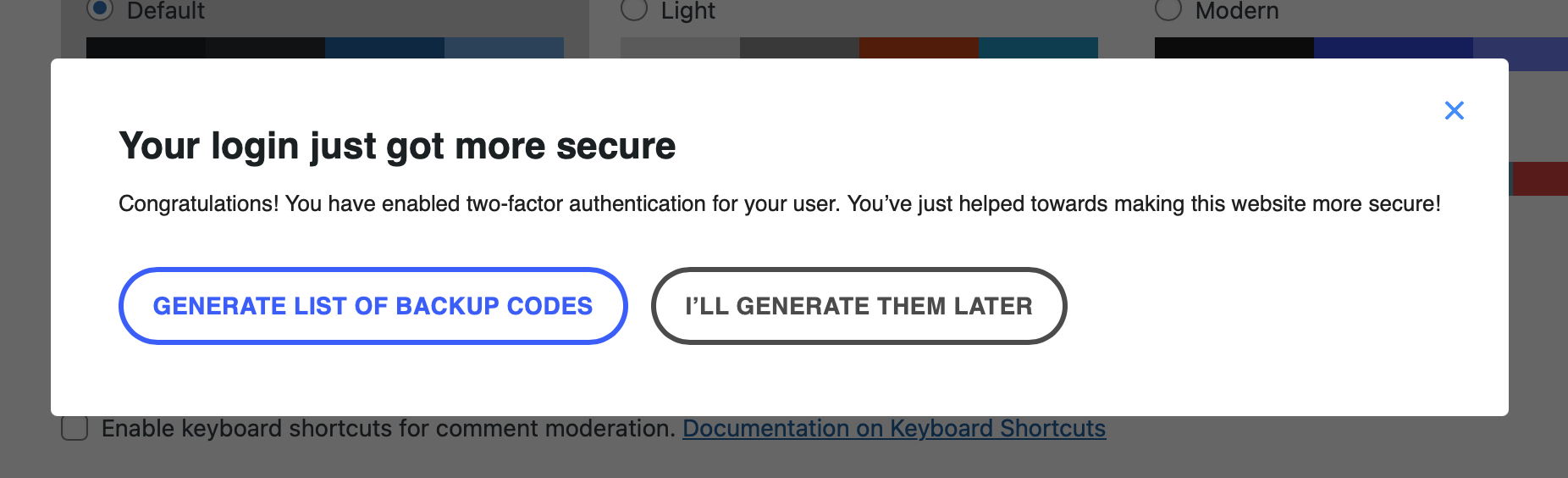
4. In the next screen, you have the option to generate a list of backup codes that you can use to get you access to your account should you have issues logging in with 2FA. If you don’t need backup codes, you can click I’ll generate them later.
5. After completing the 2FA setup, you will be logged out and sent back to the homepage of your site. Go back to the login screen and log into your account. You should now be prompted to enter the verification code that was sent to your email address to log into the site. Make sure to check the checkbox to remember your device for 30 days.


Congratulations! You should now be logged into your site. If you are having issues logging in or setting up two-factor authentication, please email us at support@pixelmotion.com.

While great effort is made to ensure the accuracy of the information on this site, errors can occur. Please verify all pricing and installed equipment information with a customer service representative. This is easily done by calling us or visiting us at the dealership.
We improve our products and advertising by using Microsoft Clarity to see how you use our website. By using our site, you agree that we and Microsoft can collect and use this data. Our privacy statement has more details.
Save your favorite vehicles for later viewing on your desktop or mobile devices.
Keep track of all the vehicles you've viewed for a better car shopping experience.
Narrow your search by comparing your favorite vehicles.